Some JavaScript Inspiration...
What kind of crazy stuff can you do with HTML5 and JavaScript?
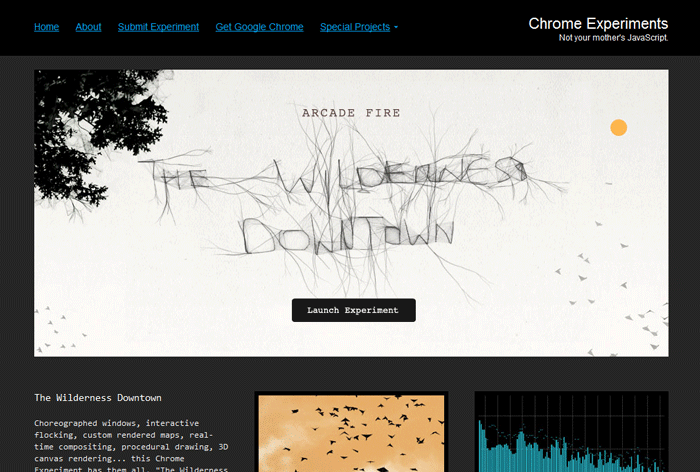
Arcade Fire's interactive music video:
The Wilderness Downtown.
(Dynamic content, Canvas 3D, Google Maps, drawing tools, and more!)
The Ladies Learning Code Mentors
(Aren't they awesome?)
Now Back To Your Regularly Programmed Workshop...
JavaScript Theory
Hands-on
Part 2
Functions & Methods
What is something that you do that's very repetitive or a hassle? Wouldn't it be great if it was automated? Or at least hidden away?
| Paying for parking: |
The old way

|
The improved way

|
- Find bank machine
- Pull out bank card
- Get money out from ATM
- Buy chips so you can make change
- Put change into machine
- Take receipt
|
- Pull the PayPass credit card from your wallet
- Tap
- Take receipt
|
*
Functions in JavaScript
Functions are used to make the code "do things." Sometimes they are also called methods when found on an object - more on that in a bit!
prompt()
and
alert()
are two functions that are pre-written into JavaScript.
Someone already did the hard work for us by writing these functions to show us popups in the browser.
But we can also write our own!
Defining a Function
Create your own functions to group together your own repetitive tasks.
To create a function, it needs to be defined
first.
There are different ways to define a function, but the most common way is using the
function
keyword and enclosing one or more lines of code within curly braces { }.
function nameOfFunction() {
  //code to execute
}
*
Calling a Function
The code within functions doesn't execute until it's called!
Let's try that again.
Functions & Events
The browser executes the JavaScript as soon as the page loads.
But sometimes you need to control when it executes. For example,
if someone rolls over a navigation menu or presses a Submit button.
This is where functions also come into play.
Functions in Functions
Let's take another look at our shopping cart and figure out what the functions are doing.
*
Review: What do we know about Functions so far?
› Created & defined by using the function keyword
› Used to group together related lines of code and store them under descriptive names
› Can be reused just by calling the function name
› Define the function first but it will not run until you call the function
› Can be used inside another function
Functions and Pizza
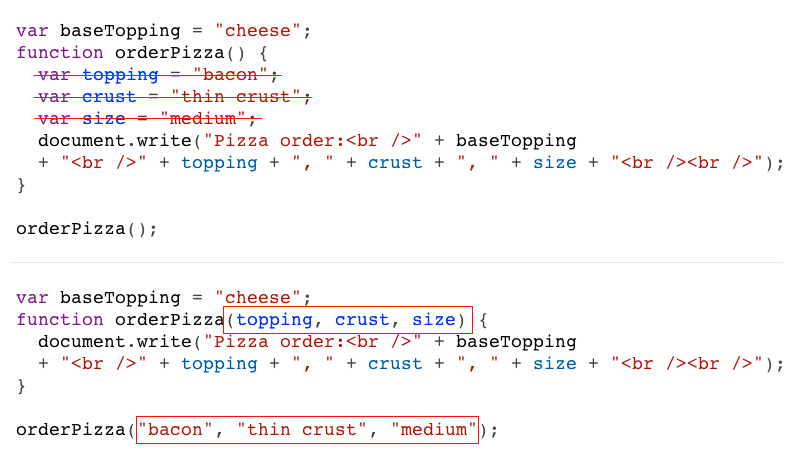
Let's order a pizza! The orderPizza() function below represents all the steps it takes to place an order (find the pizza place's phone number, call them, give them your address, etc).
Inside the function is where the pizza restaurant will hold our option choices (toppings, crust type and size of pizza). Now they can use this stored information to make our order.
More Pizza!
What if we want to order another pizza but with different options?
Let's order another pizza.
Global vs Local Variables
Let's say the pizza place always want to include cheese as a basic topping in all of the pizzas. We can declare a
baseTopping
variable outside of the function so it can be accessible from anywhere in the program.
Functions, Pizza and Parameters
This could get cumbersome if we wanted to make a lot of pizzas. How can we re-use the makePizza() function instead of creating multiple functions? We use PARAMETERS.
Functions can be used with one parameter, more than one parameter or none at all.
*
Review: Functions and Parameters
Functions are more flexible when used with parameters because variables can be passed into the function.
In the makePizza() function, the variables from inside the function were removed and added as parameters. Now when we call the function we can pass the values right into the function.
JavaScript Theory Applied
Putting it together on an actual HTML page
Inline JavaScript
JavaScript can appear
inline
in a webpage in several spots. Either in the
<head>
section or anywhere in the
<body>
section.
 <html>
 <head>
   <title>JavaScript example!</title>
   <script type="text/javascript">
     alert("I'm in the head tag!");
   </script>
 </head>
 <body>
   <div id="example">This is an example.</div>
   <script type="text/javascript">
     alert("I'm in the body tag!");
   </script>
 </body>
</html>
Need to manipulate an html tag or have a quick loading page? Put the JavaScript just before the
closing
<body>
tag.
Using a Code Editor
Download and open up this file: exercises/pizzaMaking.html
(Psst: It's also in the ZIP folder that you downloaded earlier today.)
This is almost the same code as previous. Why isn't it making pizza? :(
Take note of how your code is being coloured. It's the first sign of a possible syntax error and will save you headaches later.
Some editors do a better job than others -- that's what you pay for sometimes.
Objects
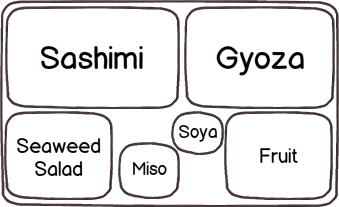
If variables are boxes, OBJECTS can be thought of as bento boxes -- "advanced variables" if you will.

How Bento Boxes are like Objects
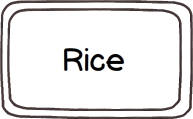
|
A basic variable only holds one value.
var takeout = "Fried Rice";
|
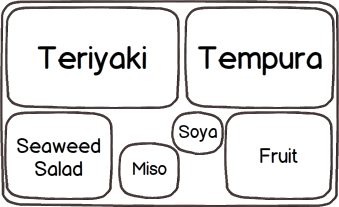
|
An object holds a collection of values.
// create a new object
var bentobox = {};

// fill it with stuff
bentobox.main = "Teriyaki";
bentobox.side = "Tempura";
bentobox.salad = "Seaweed Salad";
bentobox.soup = "Miso";
bentobox.sauce = "Soya";
bentobox.dessert = "Fruit";
|
Creating an Object
Creating an object is easy. Just like any other variable, use the var keyword and give it a descriptive name.
But instead of assigning a single value right away, use these curly braces to make an empty object.
var bentobox = {};
Yes, it's weird but think about the {} as a sort of funky container.
Object Properties
The "compartments" of objects are called PROPERTIES.
If you already have an existing object, there are a few ways to access and set a value to a property. Since these two are very commonly used, they will both be discussed.
Dot notation:
myObject.property = value;
bentobox.main = "Teriyaki";
bentobox.side = "Tempura";
|
|
Key-Value Lookup:
myObject[key] = value;
bentobox["main"] = "Teriyaki";
bentobox["side"] = "Tempura";
This will be most useful after you understand arrays. Advantage:
You can use concatenation with the key string in order to do look up something that's partially dynamic:
|
bentobox.soup0 = "Miso";
bentobox.soup1 = "Udon";
|
|
bentobox["soup"+1] = "Miso";
bentobox["soup"+2] = "Udon";
|
Advanced sidenote:
Alternatively, you can both declare an object and set it's values at the same time:
var bentobox = { soup:"Miso", main:"Teriyaki" };
Why use Objects?
Advanced topic: Objects are useful because you group all these properties together and you can reuse the object over again.
There's an expectation of what you'll get in a bento box.
Some items are fixed (a fruit dessert, a miso soup) but some compartments can be edited (a gyoza side versus tempura).
Think of Everything as an Object*
When I said that objects were "advanced variables", here's another way of looking at it:
All JavaScript variables can be treated like objects too.
If curly braces are a container for a generic object, quotes are containers for characters. When we get to arrays next, you'll see that it uses square brackets. (The only "uncontainered" object we've introduced today was a number.)
var stringObject = “ ”;
var arrayObject = [ ];
Some objects are simpler than others but almost everything in JavaScript has properties available to us.
*Again, I need to oversimplify. The concept called DATA TYPE is a hairy topic. For more info: http://javascriptweblog.wordpress.com/2010/09/27/the-secret-life-of-javascript-primitives/ and http://www.2ality.com/2011/03/javascript-values-not-everything-is.html
Built-in JavaScript Properties
In this workshop we won't be creating any of our own objects, but JavaScript already has many objects built into the language.
Let's look at a string object and the length property which returns the number of characters in a string. Try putting your own name in here.
Functions in Objects
Previously, we talked about functions as blocks of re-usable code. This might sound crazy but you can store functions in variables too!
This function...
function sayHello(){
  document.write("hello");
}

sayHello();
|
➞
|
is the same as:
sayHello = function() {
  document.write("hello");
}

sayHello();
|
|
|
|
ↆ |
|
|
|
But now look at this!
var welcomeTeam = {};
welcomeTeam.sayHello = function() {
  document.write("hello");
}
welcomeTeam.sayHello();
|
Object Methods
When a function is associated with an object we call it a METHOD.
Let's say you're having a robot sale! Everything is 50% off. But, after doing the math, you notice that the sale price is a bit off.. Let's declare a sale price and manipulate it using toFixed(). When you use a method, it gives you access to all the hard work that someone else did and it only takes you one line to use it!
Looking up properties and references
length and toFixed() are only two of many (many!) more built-in properties and methods of objects in JavaScript.
Check out this list: https://developer.mozilla.org/en-US/docs/JavaScript_Methods_Index.
An overwhelming look at objects: https://developer.mozilla.org/en-US/docs/JavaScript/Guide/Predefined_Core_Objects
Arrays
Arrays are similar to objects; they both hold a collection of values. However, arrays hold its values in a numerical index rather than labels.
Think of arrays as egg cartons. All the eggs are in one carton but each egg has its own slot.
 Just like variables and objects, declare an array with the keyword
 var.
var eggspressions = [];
Unlike objects, arrays are declared with square brackets [ ].
Arrays How-to
//declaring an empty array
var eggspressions = [];
Set values using square bracket [ ] notation.
//assigning values
eggspressions[0] = "skeptical";
eggspressions[1] = "frazzled";
eggspressions[2] = "silly";
eggspressions[3] = "giggling";
The numbers inside the square brackets [ ] are referred to as the
index number. Array indexes always start at zero.
Arrays can be declared in different ways.
The above example can also be declared like this:
var eggspressions = ["skeptical","frazzled","silly", "giggling"];
See more info here:
http://www.w3schools.com/js/js_obj_array.asp
Arrays and Indexes
Index numbers are used to assign values.
Index numbers are also used to access values.
To access the value of the second egg in the eggspressions array, use index 1 since it's the second item in the list.
Arrays and Properties
Since Arrays are also objects, there are many properties associated with the Array object.
The length property is also associated with array objects.
As mentioned previously, the length property returns the number of characters when associated with a string. When used with an Array, the length property returns the number of elements.
Arrays & Length: Why?
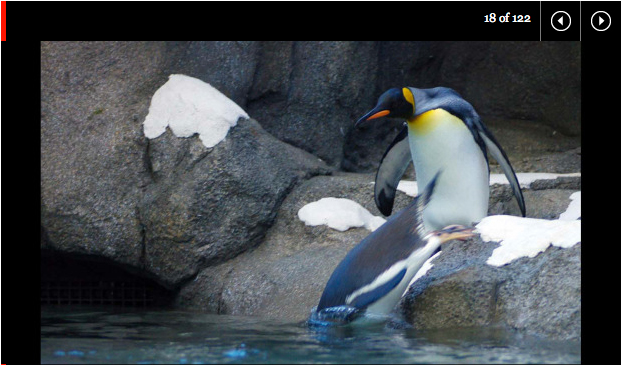
It is common to use JavaScript to run through a list of values and apply some code to it. In order to do this, we need to know how many elements there are in total.
Let's look at this photo gallery from
theglobeandmail.com
and figure out how length can be used here.
*
Arrays & Length and the 0 Index
How do we access a particular value?
By using the index number.
So how do we access the
last
value?
var eggspressions = [];
eggspressions[0] = "skeptical";
eggspressions[1] = "frazzled";
eggspressions[2] = "silly";
eggspressions[3] = "giggling";
To access the last index value, you can use
eggspressions[3].
BUT...
You can also use
eggspressions[eggspressions.length-1].
Huh?
REWIND: Arrays & Length
and the 0 Index
var eggspressions = [];
eggspressions[0] = "skeptical";
eggspressions[1] = "frazzled";
eggspressions[2] = "silly";
eggspressions[3] = "giggling";
Let's break it down.
› eggspressions.length returns 4
› index of last element is 3
› eggspressions.length-1 is the same as 4 - 1 and will return 3
› eggspressions[3] returns the last value
› eggspressions[eggspressions.length-1] is the same as eggspressions[3]
Clear as mud?
How is this useful?
Since the index always begins at 0, the last index value is always length-1.
This is useful if you want to always access the last index, despite new additions, and apply some code to it.
*
Loopty-Loops
Why use loops? Because sometimes we need to execute repetitive code for a specified number of times or through a list of values.
Loops will execute the same code continuously, using conditional statements to determine when to begin and stop.
It's like creating a playlist on your favorite music player.
You create a list of songs, press play and then each song is played automatically in the set order of the playlist.
When it reaches the end of the playlist, it stops.
We will be discussing
while loops
and
for loops.
While Loop
The
while loop
executes the code contained in curly braces { }
while
the condition is true.
An index variable is required to keep track of its place in the loop.
The
while loop
stops executing the code once the condition becomes false.
If you had 10 songs in your playlist, the player won't stop until it reaches the end of song 10.
//declare index variable
var i = 0;

while ( i < playlist.length ) {
  playCurrentSong();
  i = i + 1; // adds 1 to the current index so it moves to the next song
}
If the condition is always true, the loop will run infinitely and will never exit the while loop.
This can cause your browser to crash!
While Loop in Action!
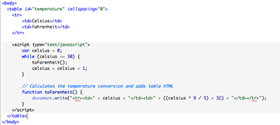
Let's use the while loop to output the mathematical formula for converting Celsius to Fahrenheit.
(The formula is: Temperature = Temperature * 9 / 5 + 32)
This next example uses a while loop to output the results of the temperature formula into HTML table rows that are also added dynamically.
It will stop when we reach 30 degrees Celsius (or whatever number is declared in the condition).
See next slide for the example.
While Loop Temperature Conversion
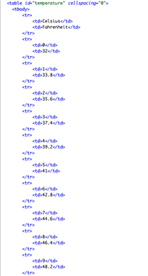
Let's look at the temperature conversion table with and without JavaScript and compare the difference in the amount of repetitive code required to create a table like this manually.
Conversion table using a while loop.
Conversion table without JavaScript.
View source and compare the difference between the amount of code.
For Loops
A for loop also loops through the code a specified number of times until the condition is false.
The index, conditional test and incrementer are all declared in one line. Basically, it's the while loop condensed.
/* While Loop */
var i = 0; //index
while ( i < playlist.length ) { //condition
  playCurrentSong();
  i = i + 1; // incrementer
}
/* For Loop */
// index, condition, incrementer
for ( var i = 0; i < playlist.length; i++ ) {
  playCurrentSong();
}
Incrementer (i++) and decrementer (i--) operators add or subtract one.
i++ is the same as i = i + 1
i-- is the same as i = i - 1
For Loops and Arrays
For loops are useful when used in conjunction with arrays because they can be used to execute specific actions while going through the list of values.
Back to our robot store. It wouldn't be much of a store if there was only one product!
We can create a list of different products with various prices by creating an array.
var productPrices = [];
productPrices[0] = 17.99;
productPrices[1] = 25;
productPrices[2] = 13.99;
productPrices[3] = 9.99;
productPrices[4] = 24.99;
productPrices[5] = 8.99;
For Loops, Arrays, Robots and Sales
Suppose we wanted to put all the items over $15 on sale? Let's use the for loop to determine which items are eligible for the sale and output the product number.
Mini-exercise #6 (10-15 minutes)
As owner of Planet Robot, you decide to have a special members-only sale: 50% off all items with a secret password! (p.s. the password is "llc"!)
Sounds like a great deal for the customer, but all you have is a static HTML page right now. Are you going to go through every single product, calculate the discounted price, and then update every entry manually? No, you're going to use loops and arrays!
Download the HTML exercise file:
exercises/shopping_cart_products_start.html
TODO: Check within the code for your THREE tasks.
If you're stuck, here's the solution file:
assets/exercises/shopping_cart_products_final.html
Regroup before break
Share your mistakes so we can learn from each other!
Break time!
Come back in 15 minutes
Document Object Model (DOM)
Manipulating objects on a real HTML page
The Components of a Web Page
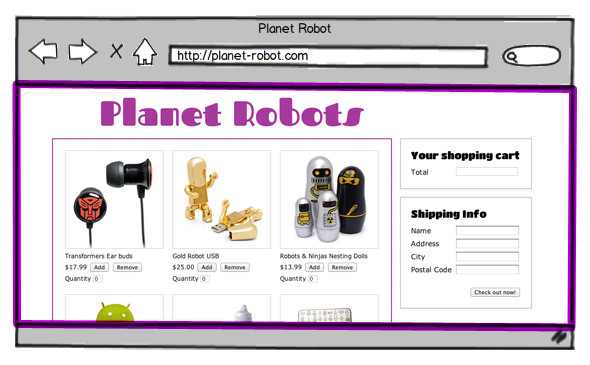
Think about your HTML web page (your "browser document") as being made up of many blocks.
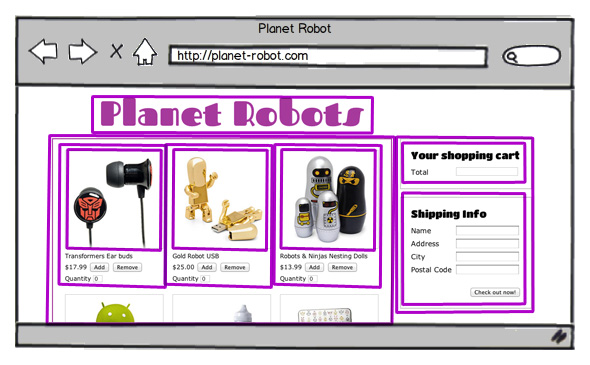
Pre-defined Blocks
Some blocks are defined by the browser, such as the browser window.
User-defined Blocks
And some blocks we make ourselves via HTML
(e.g. fieldset, div, and img HTML tags).
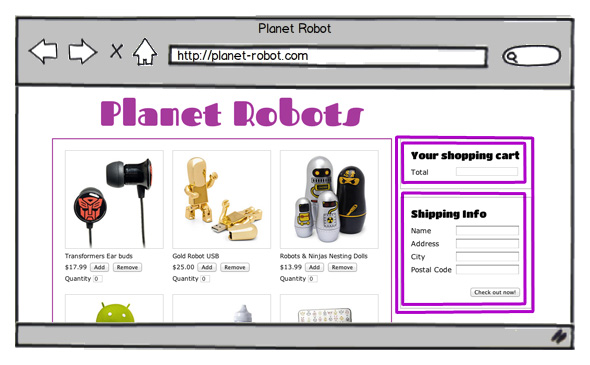
A <div></div> block.
Document Objects
All of these blocks are objects -- just like the ones we covered earlier! And all these objects have pre-written functions/methods you can use.
Does the line of code below make more sense now? document is one of the main objects of a web page and it has a method named write that accepts a string as a parameter. document has lots of other properties and methods too: check out this list.
HTML Element Objects
The most repetitive thing you'll ever do with JavaScript is getting references to your HTML tags ("elements") using document.getElementById().
(It's important that your HTML tag has an id attribute in order to do this!)
For example, let's dynamically find out what the text is in a paragraph tag by reading its innerHTML property. (You can find all the things you can do with elements here.)
HTML Element Objects (cont'd)
You can also use innerHTML to replace what's already in a element.
HTML Element Objects (cont'd)
Or let's dynamically swap out one image for another by updating the src attribute of an image tag.
Updating CSS Styles
You can even update an HTML element's CSS styles dynamically using its style property.
Consider how you might program a button toggle effect to show the difference between "selected" or "deselected" states. (Note the differences between how properties are written in CSS to how they appear in JavaScript -- background-color versus backgroundColor.
Updating CSS Styles (cont'd)
You could even update several style properties at once if you use CSS classes and update an element's class attribute.
Make DOM Elements Magically Appear!
You can even create completely new elements out of thin air! Use document.createElement() and
Going Beyond JavaScript Basics
You're getting to be quite the pro!
Debugging!
Squash those crawly things in your code.
What's a Bug?
As the story goes, the term "software bug" got its name because a real moth flew into a computer system causing strange, unexpected behaviours to happen in a computer program.
Nowadays, bugs are mostly due to human error in one of two areas:
-
Syntax - missing semi-colons, typos, case-sensitivity
-
Logic - trying to access a variable that doesn't exist yet, writing an incorrect conditional test
Luckily there's a few things to help us hunt them down quicker...
Chrome Developer Console
Use the built in developer tools in Chrome to debug your code. (Firefox+Firebug is similar but not exactly the same.)

Right click > Inspect Element
Easiest way to remember is to right-click on any web page and select "Inspect Element". In the new panel, select the "Console" tab to see JavaScript errors or to play in the console sandbox.
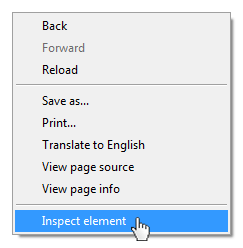
Inspecting the DOM
You can inspect any webpage with the debugger.
Let's open up the Ladies Learning Code Events page: http://ladieslearningcode.com/events/.
How can we use the console to find out how many events are listed on this page?
More info
Lots to learn about the debugger! At your leisure, watch this video for features:
http://www.youtube.com/watch?v=TH7sJbyXHuk
External JavaScript
Keeping it organized and working with others
<script src="">
As you write bigger pieces of JavaScript, you will want to start putting your code into their own files so they are easier to manage. Or you might want to enlist the help of others to write JavaScript for your website so you can work on different sections separately. A big site could have thousands of lines of code written by many different people!
To link to an external JavaScript file:
<html>
  <head>
    <title>JavaScript example!</title>
    <script type="text/javascript" src="scripts.js"></script>
  </head>
  <body>
    <div id="example">This is an example.</div>
  </body>
</html>
In the external file
In the external JavaScript file (scripts.js) you don't include script tags; just JavaScript code.
View this example: assets/exercises/external-javascript.html
script tag gotchas
Even though you're not writing JavaScript between the script tags, you must use a closing </script> tag. A self-closing tag such as <script src="scripts.js" /> will not work. The correct way is highlighted below:
<script type="text/javascript" src="scripts.js"></script>
JQuery
The Write Less, Do More, JavaScript Library
jQuery: A brief introduction
jQuery is a cross-browser JavaScript library designed to simplify client-side scripting, manipulating HTML pages and handling events. The library contains many built-in functions and methods that make writing JavaScript code easier.
Getting started
Download the library and include the file in your HTML page
Download instructions can be found here: http://docs.jquery.com/Downloading_jQuery
Gotchas!
When adding your own custom-written jQuery/JavaScript files, make sure to include it after the jQuery file to ensure that the library loads first.
jQuery: Demo
There are many built in methods and functions included in the jQuery library, too many to remember them all.
Never fear, jQuery has documented their API here: http://api.jquery.com
It's searchable and provides explanations and examples.
Let take a peek at some jQuery code.
BUT WAIT. Javascript isn't just for the browser anymore?
Javascript has grown beyond the browser! You can use this language for front-end (browser) AND back-end (server) programming now.
Node.js is a Javascript 'platform' (a bunch of tools and code to help you make complex programs) for building javascript without the browser. It is commonly used to build web servers, but it has other uses too... like ROBOTS!!
Here is a tutorial for getting started with Node.js at home: http://net.tutsplus.com/tutorials/javascript-ajax/this-time-youll-learn-node-js/
FIN
Your instructor today
Want to keep learning more?